
How to Install WordPress Without Stress

In a modern host dashboard, a first-time WordPress install takes about a minute. The manual route takes under five minutes. The decisions that make the install hold up are taken before and after those minutes.
The difficulty is in the domain and HTTPS decisions taken before Install is clicked, then again afterward in a set of defaults nobody points at. These steps assume a single-site install on hosting you control, with a domain already pointed at it and nothing live on that domain yet.
What You Need Before You Install WordPress
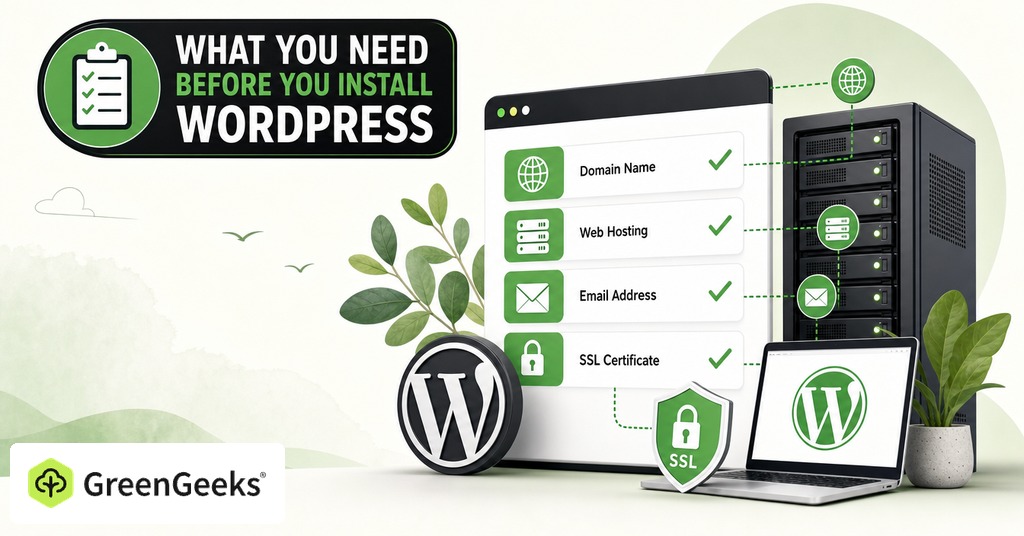
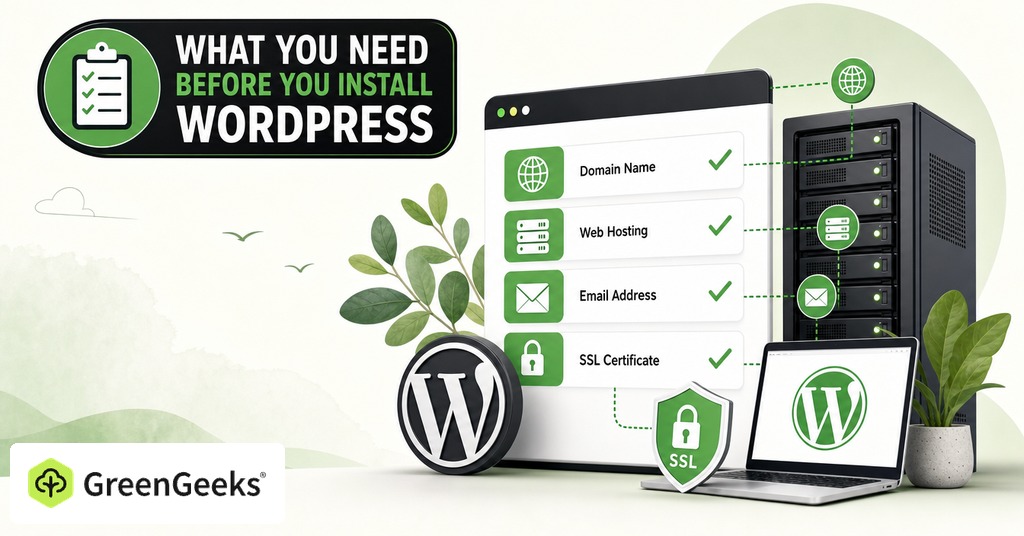
The installer needs three things already in place. Those are a domain you control, a WordPress hosting account with PHP and a database, and a working certificate on that domain.

WordPress 7.0 Requirements in 2026
Two sets of numbers circulate here and both are correct. The requirements question confuses people for that reason. WordPress.org recommends PHP 8.3 or greater, MariaDB 10.11 or MySQL 8.0 or greater, and HTTPS, the last of those required for every install. The code itself refuses to run below PHP 7.4 and MySQL 5.5.5, the only hard floors in the set.
The distinction matters because the recommendation is routinely reported as the minimum. A site will run on an older database, though those versions are past end of life and no longer receive security fixes, and nothing in WordPress prevents their use.
The current release is 7.0.2, released July 17, 2026, on the 7.0 branch that arrived in May under the codename Armstrong. One practical consequence for a beginner is that the admin looks different from every screenshot published before May 2026, since 7.0 redesigned the dashboard, added a command palette on Cmd+K and introduced a Connectors screen for AI provider connections.
Do You Need a Domain Name First?
For a site meant to be kept, yes, and it should be the domain that will be used in the end. The installer records the address it is installed on and writes it into the database, so changing the hostname later turns the job into a migration.
Set Up SSL Before You Install WordPress
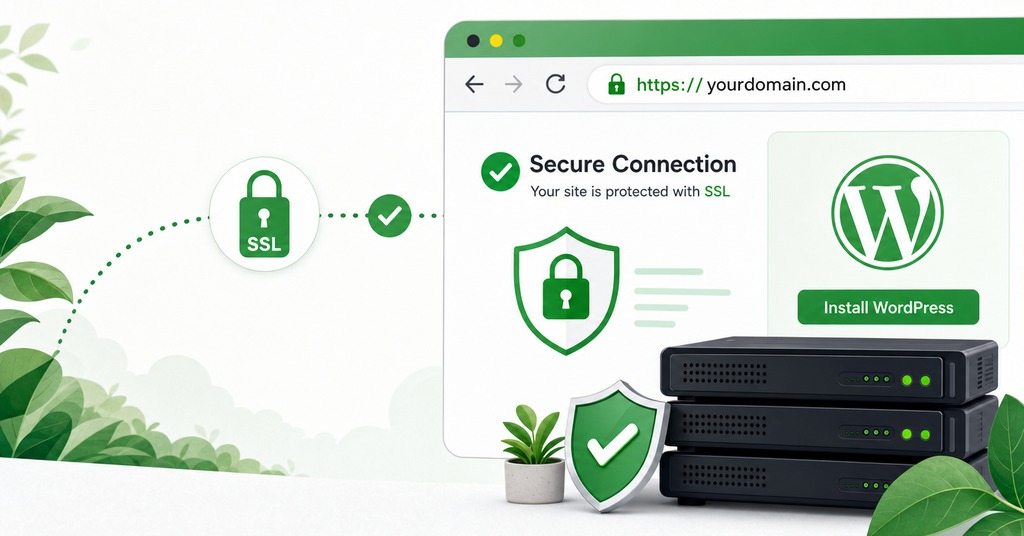
HTTPS is required for every install, named on the requirements page alongside PHP and the database. A certificate belongs on the domain regardless of whether the site handles payments, and free issuance through the host puts one in place before the installer is opened.
Why the Install Order Changes What Breaks Later
The installer writes two options into the database, siteurl and home, using whatever protocol and hostname install.php was loaded with. Load it over http and both options record http, and every media URL WordPress generates from that point forward uses the same protocol.
Switch the certificate on a month later and the images break. The page then loads over HTTPS while requesting images or scripts over plain HTTP, and browsers block or flag the insecure ones. The stored URLs are what causes it, so fixing them means a search-and-replace across the database or a runtime plugin that rewrites the URLs on every page load. A redirect loop is the other classic outcome, caused by a reverse proxy that terminates SSL while WordPress itself has no idea. Requests bounce between the two until the HTTP_X_FORWARDED_PROTO header is honored.
Both of those are avoidable by ordering two steps differently. Get a free SSL certificate issued, confirm the site loads over https in a browser, then run the installer.
When to Build on a Temporary URL Instead
The opposite advice is common, and it is correct for one case. Build on a subdomain or a temporary hostname, finish the site, then migrate it to the live domain with a plugin like Duplicator or All-in-One WP Migration, then reset permalinks and flush every cache.
That case is a domain that already runs a live site, which has to keep serving visitors while the replacement is built. Where the domain is owned and nothing is running on it yet, the temporary URL only guarantees the database rewrite the HTTPS-first order avoids.
Installing WordPress With a One-Click Installer
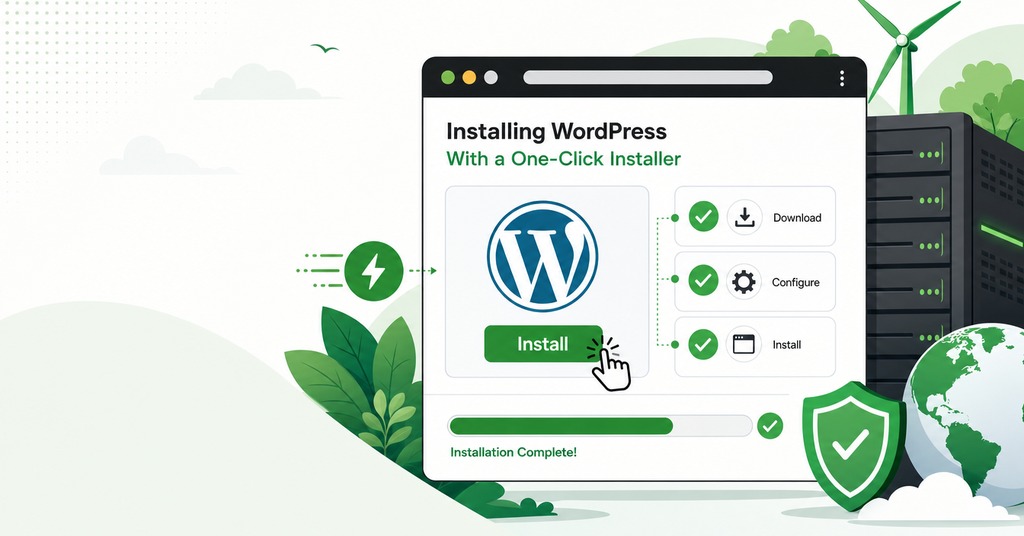
Two routes reach the same finished install, and nobody needs both. Take the automated route if your host puts an installer in the dashboard and you want the site up now. Take the manual route in the next section if it does not, or if you want to see what the installer is doing on your behalf.
An automated installer creates the database, writes wp-config.php, then runs the install script. Two fields in that flow decide more than the rest of the form, Protocol and Installation Path, and neither of them is the part that takes the time.
The GreenGeeks App Installer Click Path
GreenGeeks updated its dashboard in December 2025 to include the GreenGeeks App Installer, and its documentation now calls Softaculous the legacy installer. Both remain available, though the current path is through the account manager rather than cPanel.
The path uses the vendor’s own control labels, in this order:
Find the domain in the account manager and click Manage next to it.
Click Site in the left-hand panel, then App Installer, then the Install Apps button.
Select WordPress from the Application drop-down and choose your language.
Fill in Protocol, Domain Name and Installation Path.
Fill in Admin Username, Admin Password and Admin Email.
Click Install Application.
The whole sequence takes around a minute once the fields are filled.
Protocol is where the HTTPS decision becomes real, so choose the https option. Installation Path is where a root install differs from a subdirectory install. Leave it blank and WordPress goes to the root of the domain, the placement most people want.
The Plugin Box in the Legacy Softaculous Installer
The legacy Softaculous route adds one screen the App Installer does not. Its Select Plugins box arrives with two plugins already selected, Cookie Consent Pro and LiteSpeed Cache, and Yoast SEO is offered alongside them. All three can be unchecked and none of them is required for the install to succeed.
One-click installers draw a standing objection for exactly this reason. They add software nobody asked for. The counter-argument is that a caching plugin matched to the server is a reasonable default and easier to accept now than to configure later. Either way, every box left checked is code that has to be kept patched for the life of the site, and plugin code is where the exposure concentrates, with 91% of the 11,334 new WordPress vulnerabilities recorded in 2025 found in plugins rather than in core.
The Manual Install, Step by Step
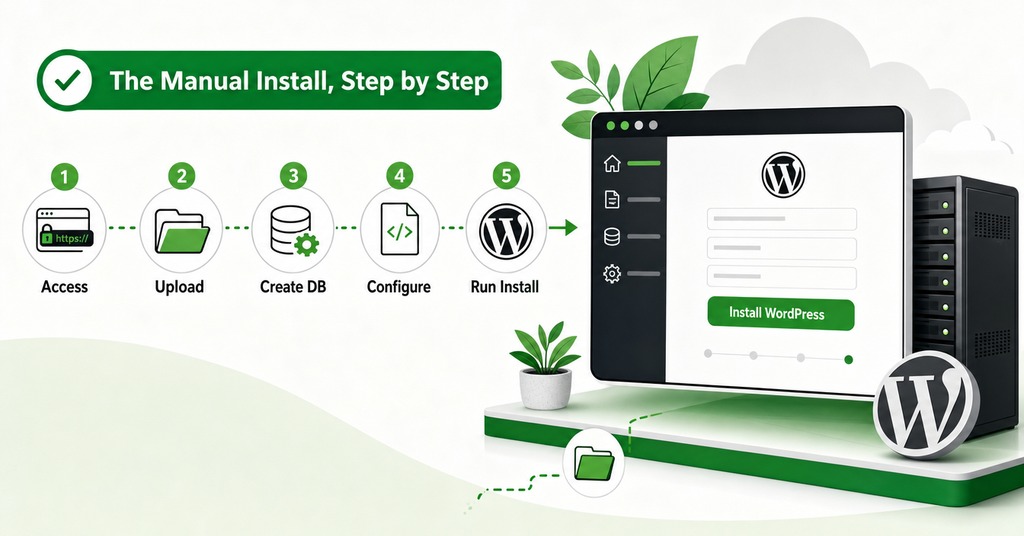
These steps produce the same install by hand, for anyone whose host offers no installer in the dashboard.
The manual route is five steps:
Download and unzip the WordPress package.
Create a database and a user with full privileges on it.
Optionally create wp-config.php with the database details.
Upload the files to your web root.
Run the install script in a browser.
Because the install program creates wp-config.php on its own when it is skipped, the third step is genuinely optional.
Creating the Database and User
In cPanel this is the MySQL Database Wizard. Name the database and click Next Step, create a username and a password on the following screen, then check All Privileges before continuing. Use the password generator rather than inventing a password by hand.
Shared hosting adds a prefix that catches almost everyone. The real database name and username are prefixed with the account name and an underscore, so a database named wp007 is stored as accountname_wp007, and that prefixed version is what goes into the install form. For the database host, leave it as localhost. It works on most shared hosting. If it does not, the correct hostname comes from the hosting provider and cannot be guessed.
Running install.php in the Browser
Upload the contents of the unzipped wordpress folder to your web root rather than the folder itself, unless the site belongs in a subdirectory. If your FTP client offers to convert filenames to lower case, turn that option off.
Visit the install script next. For a root install that is the domain followed by /wp-admin/install.php. The screens come in this order:
Pick a language and click Continue.
Read the information screen and click Let’s go.
Fill in the database form and click Submit.
Click Run the installation.
Fill in the site details and click Install WordPress.
The final screen asks for Site Title, Username, Password, Your Email and search engine visibility. The password field is pre-filled with an 18-character random string, stronger than a hand-typed password, so copy it into a password manager and leave the field alone.
WordPress Salts and When You Need Them
wp-config.php has eight authentication constants, four keys and four salts. The shipped sample file sets all eight to the literal string “put your unique phrase here”. The generator that produces real ones is a plain-text endpoint on api.wordpress.org that returns eight ready-to-paste lines.
When the browser installer creates wp-config.php, WordPress generates and writes the unique salts itself and they never appear on screen. Hand-pasting is only necessary when editing wp-config.php by hand, and because the salts are session material, changing them invalidates every existing login cookie and forces everyone, including an intruder, to sign in again.
Choosing Your WordPress Admin Username
Both routes ask for this, and the field in the current installer arrives empty. Nobody has been forced into the username “admin” since WordPress 3.0 in June 2010.
The Problem With the Username “admin”
Using “admin” gives an attacker half of the credentials before they start. It is the first username anything automated tries. Pick something that is not a dictionary word and not the domain name, and keep it different from the display name visitors see.
What Protects the Login More Than the Username Does
Username obscurity is not near the top of current brute-force guidance. The ranked defenses are:
A strong unique password from a password manager.
Two-factor authentication on every administrator account.
Passkeys through a plugin, since core ships neither them nor two-factor authentication.
Rate limiting at the edge or at the web server.
A challenge on the login form.
Obscuring the login URL cuts the volume of attempts without being a defense on its own. Hardening the login form also leaves xmlrpc.php untouched, and that file remains a frequent brute-force target, particularly through its system.multicall method.
Confirming a WordPress Install Succeeded
A finished install and a failed one look identical from the outside for the first few minutes, since the files sit on the server regardless of whether the database step completed and no screen reports the result afterward. One site owner in July 2026 uploaded the files, edited wp-config.php, visited install.php and reported that WordPress would not install, when the page source at the address they had posted already contained a meta generator tag reading WordPress 7.0. The install had succeeded and nothing in the browser had said so.
Confirming the install takes three checks and no tools.
Load your domain in a private browsing window and look for the default theme with a post titled “Hello world!” on it.
Add /wp-admin to the same address and confirm you get a login form instead of an error.
Log in with the credentials you set, then check the address bar for the padlock.
If all three hold, the install is finished, and the remaining work is configuration.
The First Ten Minutes After Installing WordPress
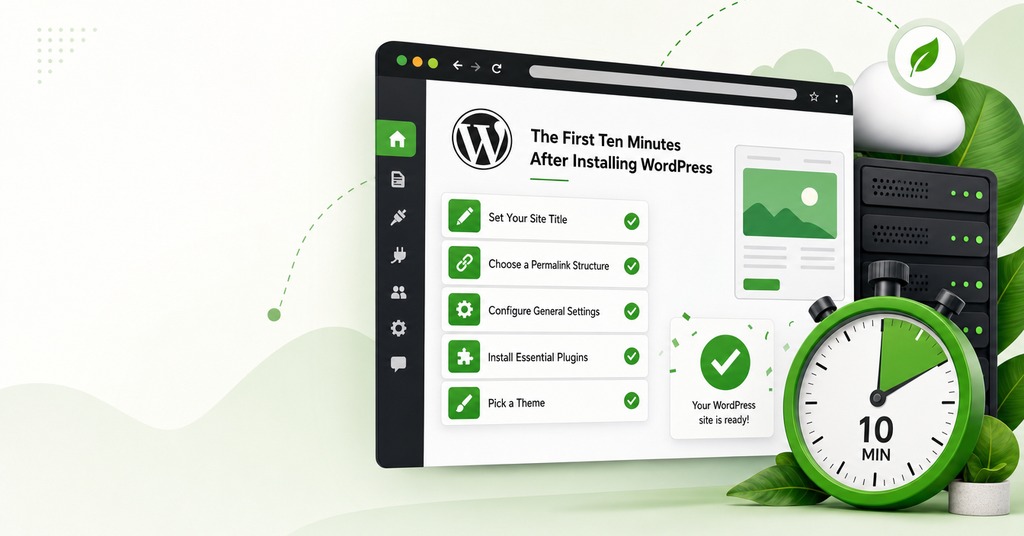
Four settings decide how URLs are formed, when scheduled posts publish, whether search engines are asked to stay away and where recovery mail goes, and each one takes under a minute to change.
Change Your Permalinks
A fresh single-site install comes up on plain permalinks, meaning URLs of the form example.com/?p=123, since the dated structure is applied only on multisite installs.
Go to Settings, Permalinks and change your permalinks to a real structure, with post name the usual choice. Saving that screen also regenerates .htaccess, and resetting permalinks is also the standard fix for two unrelated errors.
Set the Timezone
Every scheduled post will publish at the wrong hour until one dropdown is fixed, because the install defaults to UTC. The control is at Settings, General, and the change takes thirty seconds.
Check the Search Engine Visibility Setting
The install screen has a checkbox labeled “Discourage search engines from indexing this site”, unchecked by default, and the same control appears afterward at Settings, Reading. The note beside it says it is up to search engines to honor the request, which is all the setting does.
Leaving it unchecked costs nothing, while checking it during construction and never coming back leaves the request in place for months after launch.
Confirm the Admin Email Works
WordPress shows an administrator an email verification screen every six months for a reason. The address entered at install is where the password reset goes, and when something breaks, the critical error message tells the visitor to check the site admin email inbox for instructions. A mistyped address turns both of those into dead ends at the moment they are needed most, and a correct address still fails if the host sends no mail at all, so the delivery itself has to be checked. Send yourself a password reset now, while everything still works, then confirm the mail arrives.
WordPress Install Errors and What They Mean
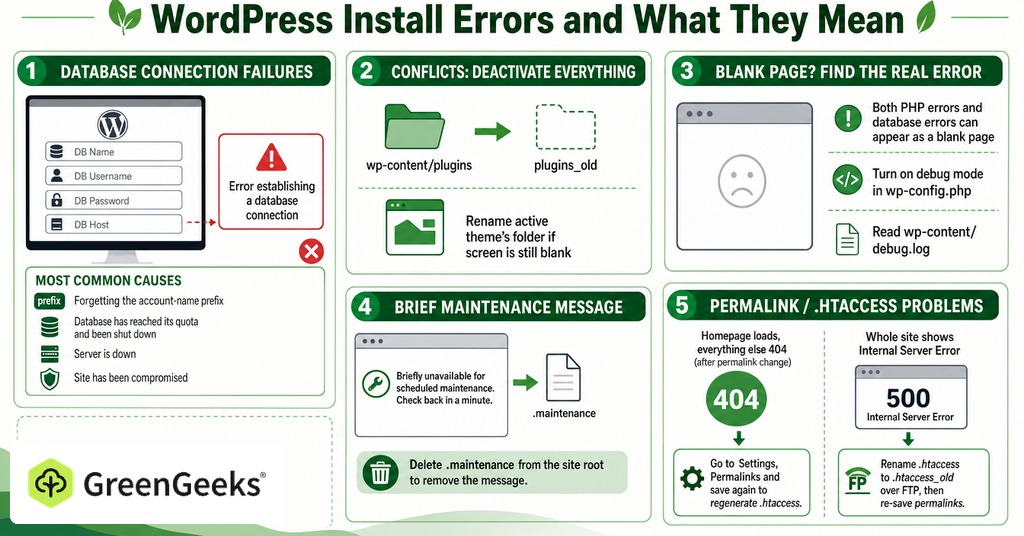
Database connection failures dominate what goes wrong in practice, because the install form asks for four values that have to match what the host created exactly, and a single wrong character in any of them stops everything with the same unhelpful message. Almost none of what goes wrong at this stage is the software being hard to follow.
Error Establishing a Database Connection
Start with wp-config.php, since this is usually a wrong database name, username, password or host recorded there. On shared hosting the most common version of that is forgetting the account-name prefix. The other causes are a database that has reached its quota and been shut down, a server that is down, or a site that has been compromised.
A White Screen or a Critical Error
Deactivating everything at once is the first move, done by renaming wp-content/plugins to plugins_old over FTP, then renaming the active theme’s folder if the screen is still blank. Both PHP errors and database errors can arrive as a blank page with nothing on it, and for the newer message that names a critical error, turn on debug mode in wp-config.php and read wp-content/debug.log.
One more error affects first-timers who click Update straight after installing. A message about the site being briefly unavailable for scheduled maintenance means a .maintenance file was written during an update and never removed, and deleting that file from the site root removes the message.
404s on Every Page But the Homepage
The homepage loads and everything else returns a 404, usually right after a permalink change. The cause is mod_rewrite, so visit Settings, Permalinks and save the screen again to regenerate .htaccess. If the whole site returns an Internal Server Error instead, rename .htaccess to .htaccess_old over FTP and then re-save permalinks to write a clean one.
Frequently Asked Questions
What is the latest version of WordPress?
WordPress 7.0.2, released July 17, 2026. It is a point release on the 7.0 branch, codenamed Armstrong, which arrived on May 20, 2026, and redesigned the admin dashboard.
How long does it take to install WordPress?
Around a minute through a modern dashboard installer, and under five minutes by hand. The surrounding work takes considerably longer than the install itself.
Should I use “admin” as my WordPress username?
No. It is the first username automated attacks try, so choosing it hands over half the credential before anything else happens. The installer has not defaulted to it since WordPress 3.0 in 2010.
Can I change my WordPress admin username later?
Not from the user profile screen, which does not allow the username field to be edited. The usual routes are creating a second administrator account, deleting the first and reassigning its content, or installing a dedicated username-changer plugin.
What are WordPress salts and do I need to generate them?
Salts are eight random values in wp-config.php that WordPress uses to invalidate login cookies. If the installer creates wp-config.php for you, it generates unique salts automatically. You only need the generator when you create the file by hand.
What should I put for Database Host?
Leave it as localhost, which works on most shared hosting. If the install rejects it, the correct hostname has to come from your hosting provider and cannot be guessed.
Should I change the WordPress table prefix from wp_?
Only if you are running more than one WordPress install in the same database. Changing it after WordPress is installed makes the site behave as though it was never installed, so it is a setup-time decision and nothing else.
Should I install WordPress in the root directory or a subdirectory?
Root, for almost every site, since that puts your content at example.com rather than example.com/blog. A subdirectory install makes sense when the domain already serves something else at the root that has to stay.
Should I delete the Hello Dolly plugin?
It is still bundled with WordPress 7.0.2 and it does nothing until activated. Deleting it is tidy, not urgent, and the same is true of the sample post and page.
Do I need an SSL plugin like Really Simple SSL?
Not if you installed WordPress over HTTPS in the first place, because the database never records an http URL for the plugin to rewrite. Those plugins exist to patch sites that were installed over http and moved later.
What PHP version should I use for WordPress in 2026?
PHP 8.3 or greater is the current recommendation. Check your theme and plugins before moving to the newest available release, since compatibility gaps on the most recent PHP versions have caused login failures on otherwise clean installs.
Is WordPress.org the same as WordPress.com?
No. WordPress.org is the open-source software you install on your own hosting, while WordPress.com is a hosted commercial service built on that software.


